Grid: CSV & spreadsheets
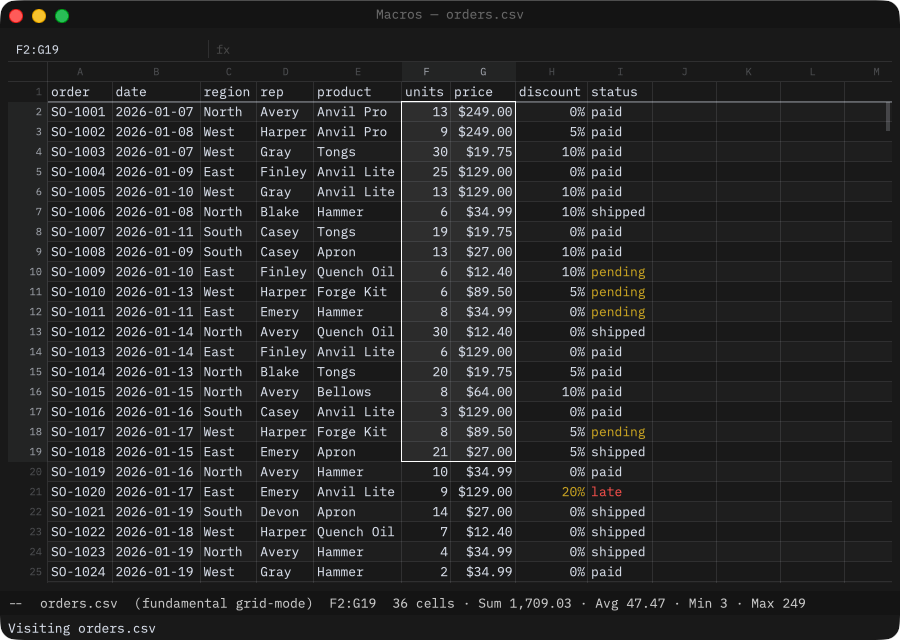
Open a .csv, .tsv, .tab, .psv, or .xlsx file — with C-x C-f, by dragging it onto a window, or with Open With from your file manager (see Opening files) — and it opens as a grid: a spreadsheet with lettered columns, numbered rows, a formula bar, and Excel's default 64 × 20 px cells. The same file is one keystroke away from its raw text.
- Your keys. The grid uses the bindings you already know from the rest of the editor (Emacs, evil, or helix), plus your own rebinds, so you don't have to learn a spreadsheet's shortcuts.
- Infinite. Scroll or move past the last row and column; the grid keeps going, and empty space you visit never reaches the file. Drag a scrollbar's thumb, or click its track to page; neither moves the cursor.
- Byte-exact saves. Rows you didn't touch are written back exactly as they were — quoting, line endings, encoding, BOM. Values are stored exactly as typed:
007stays007,12345678901234567890never becomes1.23E+19. - Fast on big files. Large files show their first rows at once and finish loading in the background; repeated values are stored once.
- Formulas. Type
=SUM(B2:B9)in a cell. See Grid formulas.
Grid or text: one keystroke
A CSV is text, and sometimes you want it as text. C-c C-t (evil: g r, or M-x grid-toggle-view) switches the same buffer between the grid and the raw file, keeping the file and any unsaved edits. Press it again to go back.
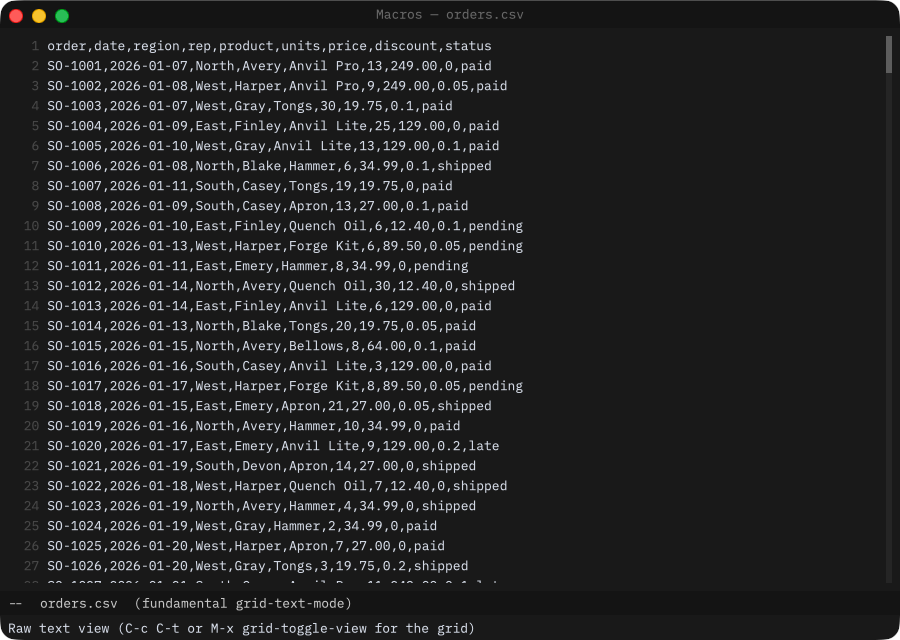
The delimiter, quoting, encoding (UTF-8, UTF-16, Windows-1252), and header row are detected when the file opens. :w orders.tsv saves a copy with tabs, :w orders.csv with commas. Run M-x grid-mode to view any text buffer as a grid.
Workbooks with several sheets
An .xlsx opens on its first sheet. C-c t (evil and helix: g t, or M-x helm-grid-sheets) lists the workbook's sheets in Helm, with the one you're on marked current; pick one to open it, or press M-a to rename or delete it instead. Each other sheet opens as a buffer of its own, named like report.xlsx<Costs>, so you can switch between sheets with your usual buffer keys. A sheet that's already open is reused, and picking the first sheet returns to the file's own buffer.
Saving from any sheet's buffer saves the whole workbook: every open sheet with its unsaved edits, and every other sheet as it was loaded, with formulas, their results and formatting. All the workbook's buffers are then unmodified. Formulas can read other sheets, as in Excel: =Costs!B2, =SUM('Q1 Sales'!C:C). Until a sheet is open, its values are the ones last saved in the file; once it's open in a buffer, edits there update the formulas reading it right away, saved or not.
Sheets can be added, renamed, deleted and moved. The keys sit next to the sheet picker:
| Emacs | evil / helix | |
|---|---|---|
| C-c T a | g T a | Add an empty sheet after the last, and show it (the prompt offers Sheet2, Sheet3, …) |
| C-c T r | g T r | Rename the sheet shown: every formula referring to it, in every sheet, follows (='Q1 Sales'!A1 quoting included), and so does its buffer's name |
| C-c T d | g T d | Delete the sheet shown, after asking: formulas referring to it show #REF!. The last sheet can't be deleted |
| C-c T b / C-c T f | g T h / g T l | Move the sheet shown left / right |
They're in the C-c ? menu too, under Sheets. Each is one undo step, taken in the buffer you ran it from (deleting the sheet you're on moves you to the next one, and the undo is there): undoing a rename renames it back, undoing a delete brings the sheet back with its contents and the references to it, and undoing an add removes the sheet again. Reference rewrites in other open sheet buffers are reversed as edits of their own in those buffers. The sheet names are part of the workbook, so a rename, delete or move leaves every one of its buffers modified until it's saved.
A CSV grid can grow a second sheet too (C-c T a). CSV can't hold more than one sheet, so saving then asks for an .xlsx to save the workbook as; the CSV file is left as it was, and its buffer visits the new file.
A workbook holding something the grid can't write back — charts, borders and other cell styles, hidden sheets, defined names, … — opens protected (quietly — saving over it is what tells you why): you can edit any sheet and save the workbook as a copy with :w copy.xlsx, but the original file is never overwritten. See what saves.
From Scheme, (grid-sheets) lists the sheet names, (grid-current-sheet) names the one shown, and (grid-open-sheet "Costs") opens one. (grid-add-sheet "Costs"), (grid-rename-sheet "Costs" "Q1 Sales") (or (grid-rename-sheet "Q1 Sales") for the sheet shown), (grid-delete-sheet "Costs") (without asking) and (grid-move-sheet -1) change them; called without arguments, the first three prompt.
Moving around
| Emacs | Evil / Helix | Action |
|---|---|---|
| C-f C-b C-n C-p | h j k l | One cell (arrows work too) |
| Tab / S-Tab | w / b | Next / previous cell, wrapping across rows |
| M-f M-b M-n M-p | W B } { | Jump to the edge of the data (Excel's Ctrl+Arrow) |
| C-a / C-e | 0 ^ $ | Start of row / first value / last value |
| M-< / M-> | gg / G | First / last row |
| C-v / M-v | C-d C-u C-f C-b | Page |
| C-x g | gn, :C7, :B2:D9, :12 |
Go to an address, select a range, go to a row |
| C-s / C-r | / n N | Search cell contents |
| C-c j | g| | Jump to a column by header name |
The name box at the left of the formula bar shows the cell (C7 · email, with the header name when the file has one); click it to type an address.
Selecting
| Emacs | Evil | Action |
|---|---|---|
| S-arrows, C-SPC | v | Select a range of cells |
| V / C-v | Whole rows / whole columns | |
| C-x h | % (helix) | Everything |
| drag, click a header, S-click | The mouse works as in a spreadsheet |
Moving up from the first row selects the cursor's whole column, and moving left from the first column selects its whole row — as if the cursor stepped onto the header. With a column selected, left and right add the neighbouring columns (moving back toward where you started gives them back); with a row selected, up and down add rows. Down from a selected column, or right from a selected row, steps back off the header and drops the selection. This works with every motion key: arrows, C-p / C-b, and k / h.
With a range selected, the mode line shows 24 cells · Sum 1,204 · Avg 50.2 · Min 3 · Max 249.
Editing cells
| Emacs | Evil | Action |
|---|---|---|
| just type, RET, F2 | i a RET | Edit the cell (typing replaces it in Emacs mode) |
| Backspace | c s cc | Clear the cell and type |
| C-d / Delete | x | Clear the selection |
| C-c ' | ge | Edit the cell in a full buffer (C-c C-c writes it back) |
While editing a cell: Esc saves the edit, C-g cancels it, RET / Tab save and move down / right (S-RET / S-Tab go back), M-RET inserts a newline, C-RET with a range selected writes the entry into every selected cell (Excel's Ctrl+Enter; see Filling ranges), and the usual line-editing keys (C-a C-e M-f M-b C-w C-k) work.
Multiple cursors (helix)
Under helix, a grid has helix's multiple selections, one cell each:
| Helix | Action |
|---|---|
| C / M-C | Add a cursor on the cell below / above each cursor (the new one becomes the primary) |
| s | A cursor on every selected cell matching a regex (the whole sheet when one cell is selected) |
| , / Esc | Keep only the primary cursor |
| M-, | Drop the primary cursor |
| ( / ) | Make the previous / next cursor the primary |
The other cursors are drawn more faintly than the primary, and h j k l move them all. c edits every cursor's cell at once: what you type shows in each cell as you type it and is saved into all of them with Esc. i and a add what you type before or after each cell's own text, and d clears every cursor's cell. A formula typed this way moves with each cell, the way copy-down moves it: =A4*2 in row 4 becomes =A2*2 in row 2. Each of these edits undoes in one step.
Find & replace
| Emacs | Evil / Helix | Action |
|---|---|---|
| M-% | g%, :s/old/new/c |
Query replace: ask at each cell |
| C-M-% | g& | Query replace a regexp |
M-x grid-replace / grid-replace-regexp |
:s/old/new/g, :%s/old/new/g |
Replace every match without asking |
Replacing works on the selection, or the whole sheet when nothing is selected (under evil, :s is the selection or the cursor cell and :%s the whole sheet). Rows hidden by a filter are skipped. At each cell the prompt shows the cell's text before and after: y / SPC replaces, n / DEL skips, ! replaces all the rest, . replaces this one and stops, and q / RET stops. A whole replace, a query session included, undoes in one step.
- Formulas are matched by their formula text, like Excel's Replace with Look in: Formulas: replacing
A2withA3turns=A2*2into=A3*2, and a value a formula shows is never matched. - A cell is the unit: y replaces every match in the cell (
:swithoutg, only the first). - Case and syntax follow Emacs: a search with no capitals matches any case, and the replacement copies each match's case (
paris→lyonmakesParis→Lyon). In a regexp's replacement\1…\9insert groups and\&the whole match.:suses Vim's syntax instead (\1,&, theiandIflags,\c). - An empty search reuses the previous pair.
Rows, columns, and structure
| Emacs | Evil | Action |
|---|---|---|
| C-c C-o / C-c M-o | o / O | Insert a row below / above |
| C-c C-c | go / gO | Insert a column right / left |
| C-c C-k / C-c M-k | dd / dc | Delete row / column |
| C-c C-d | du (helix: gx) | Remove duplicate rows |
| M-↑ M-↓ M-← M-→ | M-k M-j M-h M-l | Move a row / column (org-table style) |
| C-c C-s / C-c C-r | S / gS | Sort by the column, ascending / descending |
| C-c ^ | gs | Sort, choosing alpha, numeric, or time |
| S-RET | S-RET | Copy down, continuing a series (1, 2, …, dates, Q1, Q2, …) |
| C-c d / C-c r | M-d / M-r | Fill the selection down / right from its first row / column |
| C-RET | C-RET | Fill the selection with the cursor cell |
| C-w M-w C-y M-y | y p | Cut / copy / paste through the kill ring |
| C-c C-y | zp | Paste values only: the copied formulas' results, not the formulas |
| C-c C-v | zP | Paste special: values, formulas, formats, or transposed |
| C-c C-x v | zv | Turn the selected formulas into their current values |
| C-/ / C-? | u / C-r, . | Undo / redo (every command is one step), repeat |
Filling ranges
grid-fill-down (C-c d, evil and helix M-d) is Excel's Ctrl+D: it copies the selection's first row into every other row of it, and grid-fill-right (C-c r, M-r) copies its first column across, like Ctrl+R. Values are copied as they are — S-RET is the one that continues a series — along with the cells' formatting, and formulas move their relative references the way a paste does: =B2*$C$1 filled down becomes =B3*$C$1, =B4*$C$1, … With only one row selected, or nothing selected, the cells copy from the row above (or the column to the left).
To put one entry in many cells, select them, type the value or formula, and press C-RET instead of RET (Excel's Ctrl+Enter): every selected cell gets it, a formula adjusted for each cell. Outside the cell editor, C-RET (grid-fill-selection) does the same with the cursor cell. On a single cell, C-RET while editing still inserts a line break.
All three skip rows hidden by a filter (and hidden columns), never write over the header row, and undo as one step.
Copies go to the system clipboard as tab-separated values, so pasting into Excel, Numbers, or Google Sheets — or from them — just works. Pasted back into a grid, a copy brings its formulas; paste values (Excel's Paste Special › Values) brings their results instead, numbers exactly as computed and errors as their error value, and paste special can also take just the formatting or swap rows and columns. Every paste is one undo step, and M-y (C-p under evil) right after one swaps in an older kill, pasted the same way. Copy a range out as a table with C-c C-e o (org), C-c C-e m (Markdown), or C-c C-e j (JSON).
Removing duplicates
C-c C-d (evil: d u, helix: g x, or M-x grid-remove-duplicates, also in the C-c ? menu) is Excel's Data › Remove Duplicates: it deletes every row that repeats an earlier row, keeping the first, and reports Removed 12 duplicate rows, 340 remain.
It asks which columns to compare, offering the header names (or the column letters when there's no header row). Type one, or several separated by commas — email or name, city — or press RET on an empty prompt to compare every column. Two rows are duplicates when they match in all the columns you name; the other columns don't matter, and the whole row goes.
- Which rows. With several rows selected, only those rows are checked, and an empty prompt compares just the selected columns; otherwise the whole sheet is. The header row is never removed.
- Filtered rows. Rows a filter hides take no part: they are never removed and don't count as the first occurrence, so nothing you can't see is deleted. Widen first (C-x n w) to check every row.
- How values compare — as Excel does, on what each cell shows:
- text ignores case:
AnnandANNare duplicates; - numbers compare by value:
1,1.0and1e0are the same,1andoneare not; - spaces count:
Ann(with a trailing space) differs fromAnn— run M-x grid-trim-cells on the column first to ignore them; - a formula compares by its result, so
=1+1duplicates a typed2; - empty cells match each other; dates, booleans and errors compare as their text.
- text ignores case:
The duplicate highlight rule ((grid-highlight-rule "B" "duplicate" "" 'warning)) compares the same way, so you can see what would go before removing it.
Removing is one undo step. Formatting moves with the rows that stay, and formulas update as for a row delete: a reference to a removed row becomes #REF!, and a range shrinks. It is fast on large files — a million rows take a second or so. From Scheme, name the columns by header, letter, or index: (grid-remove-duplicates '("email")), (grid-remove-duplicates '("A" "C")), or (grid-remove-duplicates '()) for the default columns.
Viewing
| Emacs | Evil | Action |
|---|---|---|
| C-c > C-c < C-c = | > < = | Widen / narrow / auto-fit the column |
| drag a header border, double-click it | Resize, or auto-fit | |
| C-= C-- C-0 | Zoom in / out / reset | |
| C-c C-z | gf | Freeze the rows above the cursor (or row 1) |
| C-c M-z | gF | Freeze panes: the rows above and the columns left of the cursor |
| C-c z | zf | Freeze the first column |
| C-c C-h | gh | Treat row 1 as a header (or not) |
| C-x n f / C-x n v / C-x n w | g/ / g* / zw | Filter rows / by this value / show all |
| C-c C-x h / C-c C-x s | zc / zo | Hide a column / show hidden ones |
| C-c ? | ? | A menu of everything |
Frozen rows and columns stay put while the rest scrolls under them; each freeze key pressed again unfreezes. From Scheme, (grid-freeze-rows n) and (grid-freeze-columns n) freeze exactly n (0 unfreezes).
Column widths, zoom, frozen rows and columns, and the header choice are remembered per file, outside the CSV.
Formatting cells
Format cells as you move around, the way you would with Excel's bold, font-color, fill, number-format and Wrap Text buttons. The keys use Emacs's facemenu prefix, M-o, in every editing style; under evil and helix the same keys also work after f (f b, f $, …):
| Keys | Command | Action |
|---|---|---|
| M-o b (evil: also g b) | grid-toggle-bold |
Bold on / off |
| M-o c | grid-cycle-text-color |
Next text color |
| M-o f | grid-cycle-fill-color |
Next fill color |
| M-o w | grid-toggle-wrap |
Wrap Text on / off |
| M-o n | grid-number-format |
Pick a number format, or type a format code |
| M-o ~ | grid-format-general |
General (no number format) |
| M-o ! | grid-format-number |
Number: 1,234.50 |
| M-o $ | grid-format-currency |
Currency: $1,234.50 |
| M-o % | grid-format-percent |
Percent: 12.50% |
| M-o # | grid-format-date |
Date: 2024-03-01 |
| M-o @ | grid-format-text |
Text: shown exactly as typed |
| M-o . / M-o , | grid-increase-decimals / grid-decrease-decimals |
One decimal place more / fewer |
| M-o d | grid-clear-format |
Back to plain |
The number-format keys are Excel's Ctrl+Shift ones. A number format only changes how a cell looks: the value you typed is kept exactly, and the formula bar shows it. M-o n offers the presets above and takes any Excel format code too — #,##0.0, 0.000 "kg", d mmm yyyy, [Red]-0.00;0.00. A date format shows a number as an Excel date serial and reads text such as 3/1/2024 as a date. Numbers and dates under a format align right; text stays left.
Wrap Text wraps a cell's text at spaces to fit its column (a word wider than the column breaks where it must), and every line the cell holds shows — M-RET adds one while editing. The row grows to fit its tallest wrapped cell, and shrinks back when you turn wrap off, widen the column, or shorten the text; zooming keeps it fitted. A row whose height you set yourself (grid-taller-row / grid-shorter-row, dragging its border, grid-set-row-height) keeps that height, and the wrapped text is cut off at its bottom edge. Numbers never wrap: like Excel, a number too wide shows as ###. A cell without Wrap Text that holds several lines shows only its first, followed by ↵; the formula bar shows all of it.
To put them on other keys, bind the commands in the grid keymaps — for example, on an evil leader in grids only:
(evil-leader-set-for-modes '("grid-mode")
  (list (cons "g g" 'grid-toggle-bold)
        (cons "g p" 'grid-cycle-text-color)
        (cons "g k" 'grid-clear-format)))
The color keys step through red, orange, yellow, green, blue, purple, and back to none, and . repeats the last one in evil. With a range selected, every cell gets the same result, decided by the cell the selection started on. The commands are also in the C-c ? menu, under Format.
Formatting moves with its cells when you sort, move rows and columns, or insert and delete them, and each change is one undo step. CSV can't store formatting, so saving a formatted CSV grid becomes a Save As .xlsx, which keeps it; an .xlsx saves it in place and opens with it again. Row heights save in the .xlsx too. From Scheme: (grid-set-cell-bold row col #t), (grid-set-cell-wrap row col #t), (grid-set-cell-text-color row col 'red), (grid-set-cell-fill-color row col 'yellow) (#f removes a color), (grid-set-cell-number-format row col 'currency) (a preset or a format code; 'general removes it), (grid-set-number-format 'percent) for the selection, and (grid-clear-cell-formats). A theme can change any palette color by setting the face grid-red, grid-blue, and so on.
Styling from Scheme
Styling only changes how cells look — the file is never touched. Put it in a grid-load-hook to apply it to files by name:
(define (my-sales-grid name)
  (when (string-contains? name "orders")
    (grid-format-column "G" "$#,##0.00")          ; also "0.0%", "#,##0", "0.000 kg"
    (grid-format-column "H" "0%")
    (grid-highlight-rule "I" "=" "late" 'diagnostic-error)
    (grid-highlight-rule "H" ">=" 0.15 'diagnostic-warning)
    (grid-stripe-rows #t)
    (grid-freeze-rows 1)))
(add-hook "grid-load-hook" "my-sales-grid")
Rules take > >= < <= = != contains matches (regex) empty not-empty between duplicate top bottom; grid-row-highlight-rule colors whole rows, and grid-set-cell-face a single cell.
Scripting
Everything above is a Scheme command (grid-left, grid-sort-ascending, …) bound in scheme/grid.scm, so every key can be rebound with define-key on "grid-mode", "evil-normal:grid-mode", or "helix-normal:grid-mode". The grid is also readable and writable from Scheme:
(grid-cursor)                    ; => (6 2)
(grid-cell 6 "C")                ; any cell, synchronously
(grid-set-cells (list (list 1 "B" "42") (list 2 "B" "=B2*2")))   ; one undo step
(grid-read-range "A1:C500" 'my-callback)                         ; bulk data
(grid-sort "units" #t)
(grid-filter-rows "region" "=" "West")
(grid-remove-duplicates '("email"))
(grid-replace-all "N/A" "" 'literal 'sheet)                      ; => cells changed
(grid-replace-all "(\\d+)kg" "\\1 kg" 'regexp 'auto)              ; 'auto: the selection, else the sheet
Hooks: grid-load-hook, grid-cell-changed-hook (the cells the user edited), grid-selection-changed-hook, and grid-mode-hook. The full API is documented at the top of scheme/grid.scm.
Saving
C-x C-s and :w save as usual; an edit still being typed is saved too. Only the records you changed are rewritten. A grid that holds formulas or formatting can't be saved as CSV — CSV can't store either — so the save becomes a Save As .xlsx; see Grid formulas.